Excel MarkBook
AutoFilters
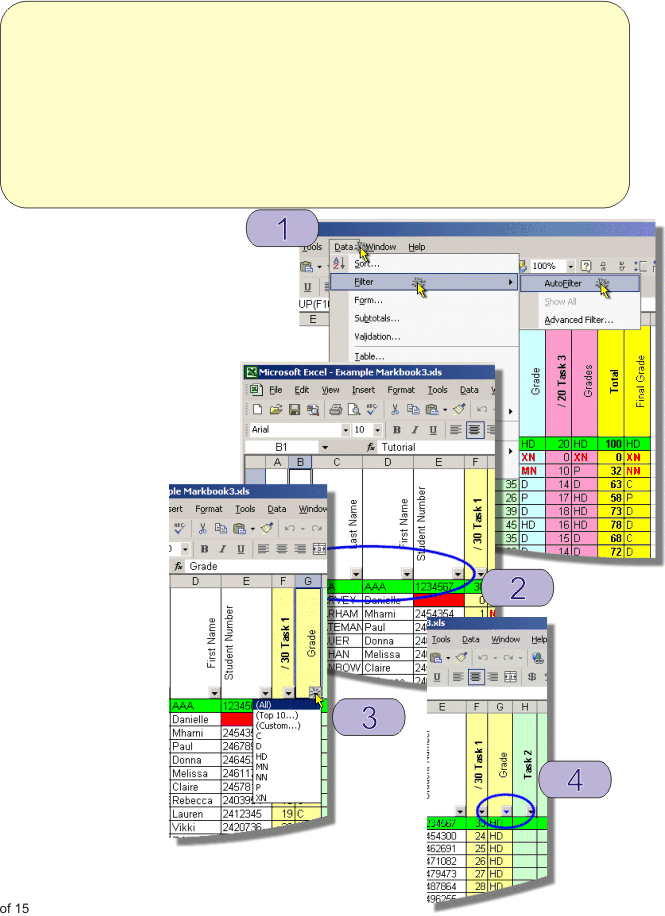
1
To turn on auto filters select
Data | Filter | AutoFilter
2 When auto filters are turned on
a series of autofilter arrows appear
at the top of each column.
3
Clicking on an autofilter
arrow displays a list of
each item in the column.
Select an item from the
autofilter list to view
all items that match the
value selected. To display
all students with a grade of
HD select HD from the
autofilter list in the grade
column.
4
When an autofilter is being
used the autofilter arrow
turns from black to blue.
Theory:
Autofilters allow you to display a subset of cells in a column. This is useful if you want to view only students from one tutorial or home group etc.
It is also possible to display a range of values less or greater than a particular value.
If the column contains names then it is possible to filter all names beginning with a particular letter or letters. eg. “A”, “Mc” “Mac”.